
Intro
A lot has happened in AI video (and music) scene since August 2024 when Lyric Video Studio was first released. There was only couple of video API providers, now there’s tens of models. We can also modify videos, use image and audio to create lipsynced videos or even generate the music if needed. And this all can be done inside single app, without swapping tabs, without leaving the one app to rule them all (APIs): Lyric Video Studio. In this tutorial we’ll take a quick dive to Google API stack.
Bridge
Here’s a quick text version of the above:
1. Go to https://aistudio.google.com/api-keys and create your API key.
2. Copy the key and paste it to Lyric Video Studio. If you want to use also Gemini AI to work on the lyrics, paste the API key to LLM view in lyric video studio.
3. Create new audio plugin track in timeline, pressing the + and navigating to audio plugins – Google. If you don’t need audio, select video or image plugins instead.
4. Create new item to track (ctrl + click on empty space) and paste the key to top left panel, General settings. API keys are stored safely to Windows credential manager. Using API keys has one clear benefit over subscriptions: you only pay for what you use. Creating a videos with Lyric Video Studio is a fast process, so you don’t need to invest in month long subscriptions. If you need to generate audio, select Lyric 3 model from view, clear out the prompts and describe your song and lyrics. Hit Generate!
5. It is recommended to start with image track, you’ll get more consistent scenes when using image as video input.
6. After image has been generated, right click the image item on timeline, select Copy source path. Create video plugin track, create item and from the left panel, select Image to video model.
7. Click the image source field and press ctrl+v to paste the image source there. You can also drag & drop images to this field.
8. Describe the video clip and click Generate.
9. If you need some filler material, you can also use text to video models.
10. Then you just repeat the process until you have enough material. Clip & edit the best parts of the generated videos and you’re on your way to finished video.
The Chorus
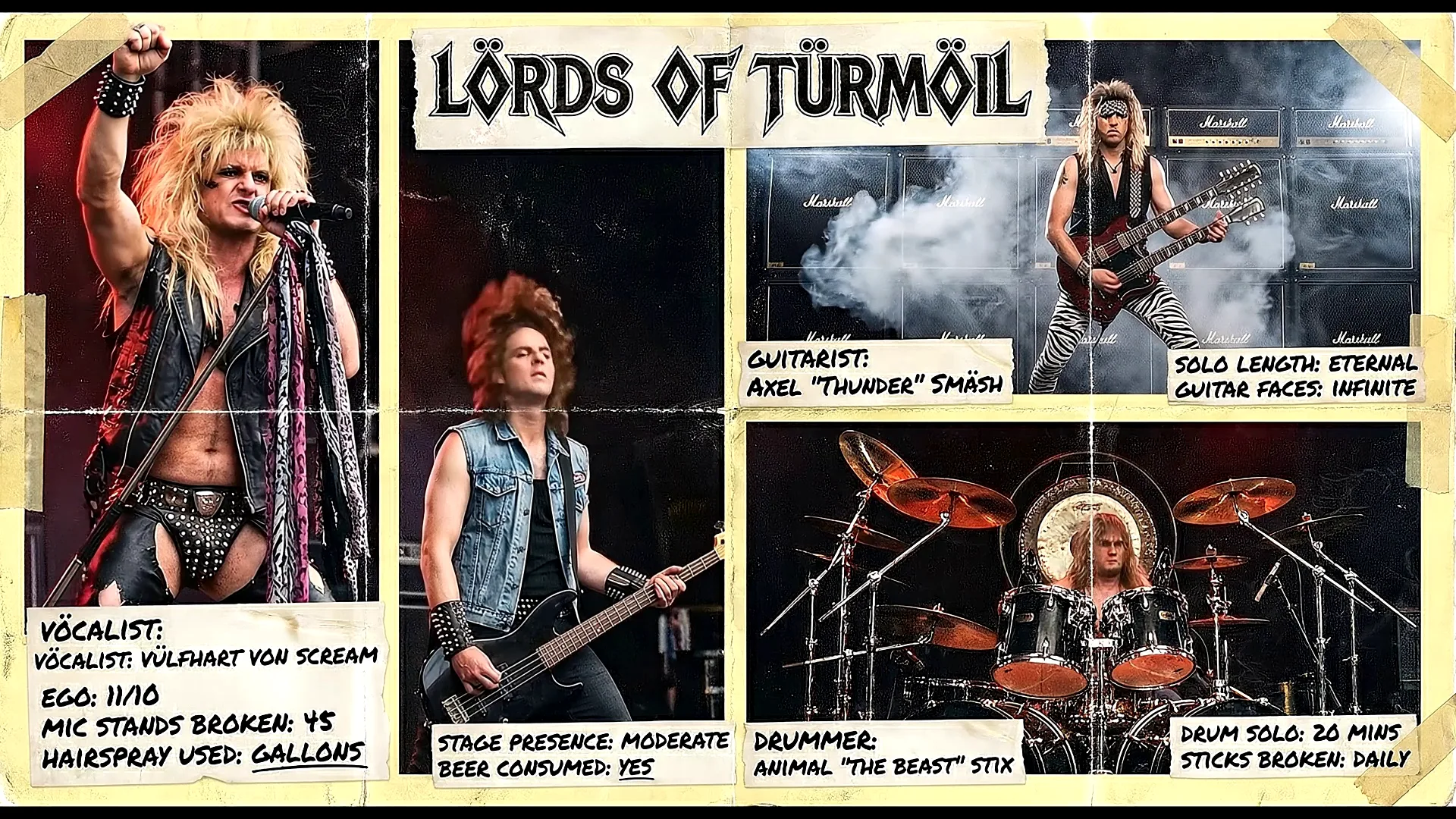
Why use generated materials then, you might ask? Absolutely the best reason is that you are no longer tied to physical reality and budget. Only your imagination is the limit…and actually not even that. Need a footage of yourself playing guitar on the wing on F-18 Super Hornet? None of your friends knows anyone who could borrow one? Ai is the solution here. Don’t have enough space for green screen? No problem, use image to video to solve it. Went to space but your camera ran out on battery mid-flight? Well, you know the solution already 😆 Check out the over the top 80’s parody below
Outro
https://lyricvideo.studio
https://apps.microsoft.com/detail/9p2mr2s6w20h
https://lyricvideostudio.itch.io/lvs
https://store.steampowered.com/app/3126810/Lyric_Video_Studio/
Free LITE version:
https://apps.microsoft.com/detail/9pn5djxq9dp7
#LyricVideoStudio #VideoEditing #VideoEditor #NLE #VideoEditingSoftware #MusicVideoEditor #LyricVideoMaker #LyricVideo #MusicVideo #PostProduction #MusicVisualizer #IndieArtist #MusicianTools #ContentCreator #IndieDev #MadeInEurope #MadeInFinland #EUtech
#Lyria3 #geminiApi #google #veo3.1
Discover more from Lyric Video Studio
Subscribe to get the latest posts sent to your email.
