
Introduction
So, you finally have the song ready to go. Wondering how those lyric videos, visualized and music videos are created? Visualizing one or more songs is great way to boost your tracks on YouTube / TikTok etc and with the latest technological advancements, it’s no longer costly nor big effort. There’s no more excuses why not to make simple lyric video, anymore
While there are many online video generators, Lyric Video Studio offers non-lagging, powerful and easy-to-use way to create all sorts of videos. It’s simple the best software for lyric videos. Using desktop version is also safe way, your song is always kept in your hard drive. Lyric Video Studio also does not require top end computer but works on decent laptops as well. This tutorial is suited for beginners, for learning how to create lyric videos.
Creating the project
There’s couple of ways to start new Lyric Video Studio project (later referred as ‘LVS’). You can start either by creating empty project or import lyrics in multiple formats. Simple .txt file will also do. In this case, lyrics will not be automatically synced to the audio. However, new lyric item is create per line in the text, so pre-format the txt file. This all is optional (see the Syncing the lyrics-chapter). Luckily there’s very simple and “sync as you play” feature that makes it easy to sync the lyrics. There’s also ‘fast lyric mode’: pressing ‘ctrl + L’ creates new lyric item to lyrics track to current playhead position.
With the new project created, add your audio to the project. Either create audio track (click the + icon on left side on existing tracks), ctrl + click the track to create new audio item and press ‘Select file’ on the side panel that opened up. Easier way is just to drag & drop the file from your file system to the timeline and that’s it. Drag & Drop works on all supported media’s, like lyric file formats, video and images.
Now you have the basic project, with audio and some text and we can dive to next steps

Syncing the lyrics
This is usually what I do next: sync the lyrics, before any font settings and visuals. But how to sync lyrics to a song? If you imported any of the many supported timestamped lyric formats, you’re already good and can skip this section. If you did not import lyrics, you can use AI to extract text from audio. Access the extraction menu by right clicking the audio item. There you have several options: Locally running Whisper, OpenAi or ElevenLabs. If you have NVIDIA gpu card, you want to go with local whisper. At first run, it downloads selected model, so it takes longer.
If you wish to use API’s, you need API key either from openAI or ElevenLabs. ElevenLabs offers generous free tier, that you can use to extract text. You can find the API keys here: https://elevenlabs.io/app/developers/api-keys Make sure that text to speech is selected for access and monthly limit is not too small. After you pasted your key or set up the local whisper, hit “Process” and lyrics will be created and synced automatically
If you imported .txt file, you have two options. 1. Manually sync the items with simply dragging the item on timeline, 2. Use the “Sync as you play”-feature: Simply press the small R button on lyrics track. Set your playhead to beginning of first item. And then just press the circle icon next to play and press and hold the sync button to set the start and end of each item. Item will grow in length as long as you keep the sync button pressed. After you release the button, the next non-synced lyrics item moves to be synced.
Creating the visuals for video
If you wish to create simple, animated video or music visualizer, you’re on the right tutorial. Let’s focus on turning single image into animation. If you don’t have album cover or image already, you can use many of the image plugins available. Google Veo3 even offers free tier to generate some images with nano banana. You can grab the API key here: https://aistudio.google.com/api-keys

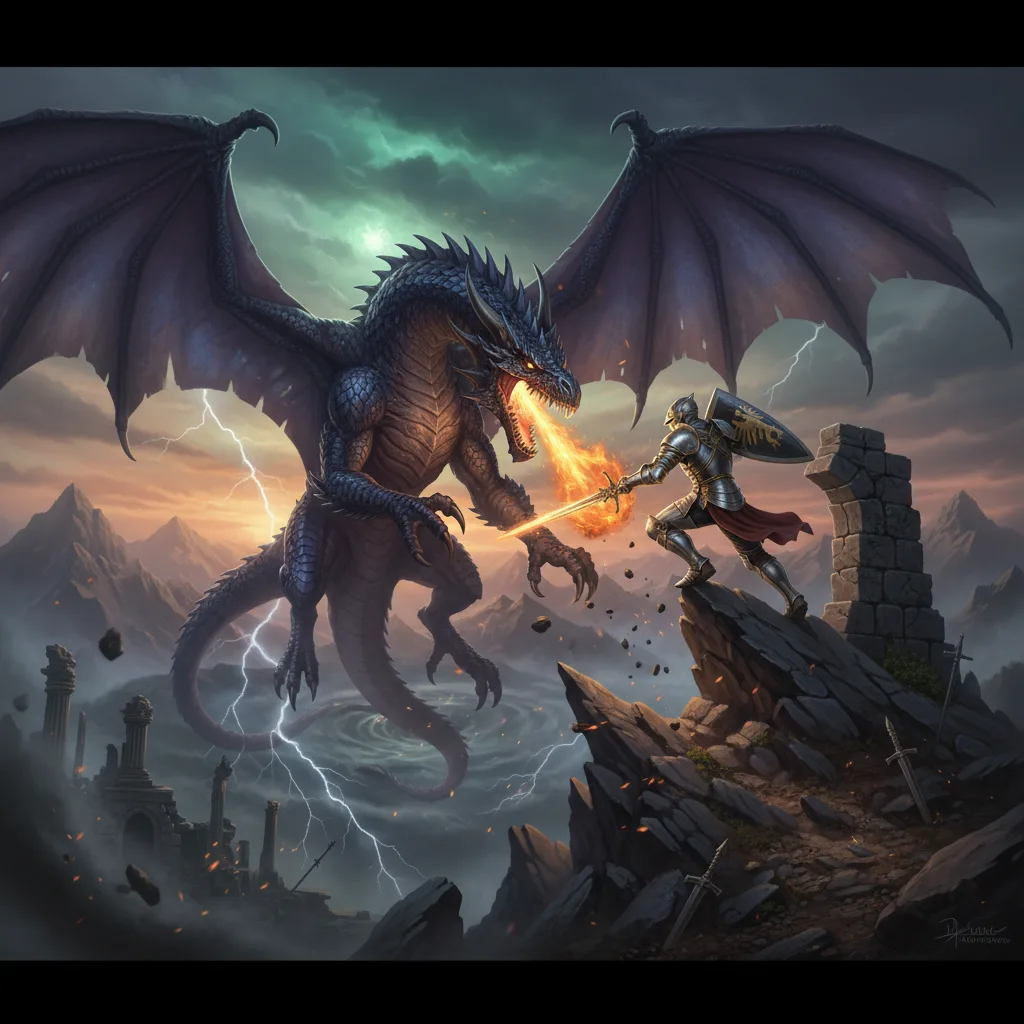
Start by creating new plugin image track, create new item to track, paste your API key and save settings and describe your image. Simple as that 🙂 Here’s the result after clicking “Generate”

Now, static image would look a lot cooler if it moves a bit. You can of course just use the static image. In that case, just right click the image, click “Extend to max” and it will be as long as your song. To animate it, we need another that. Create new track, select Video Plugins and select fal.ai plugin. You need your API key: https://fal.ai/dashboard/keys Fal.ai plugin offers many models in one plugin, so it’s the easiest to start with.
First, right click the static image item on timeline, select “Copy source path”. Then ctrl + click empty spot on fal ai track. From model dropdown, select veo3.1/first-last-frame-to-video. There are plenty of other options as well, from simple image-to-video to audio driven video generation. But first-last-frame method gives us looping video. With regular image-to-video, you can also create looping video, if you set the video to loop as “ping-pong”-mode from video item settings. Now, paste the image source you copied to first frame and last frame and describe what the video should be. While waiting for video to finish, you can close the view and start working on text visuals

When video is finished, right click it, select “Show effects” set the loop count. This will create a looping video. You might need to trim the end of the video slightly, to make the loop effect smooth. Hover over the end of the item, click and hold to adjust the end tiny bit, release. Then press play and see it the end not loops smoothly. Sometimes results may vary with genAI 😀
Adjusting the lyrics font
Now the final piece of the puzzle. Many video editing sw’s make the simple font definition tedious task. On worst case the font setting is per item. In Lyric Video Studio, this has been solved with project/track/item level setting. This means, you can define the font in project level, where it affects all text items. If some track needs different font setting, you can override the project font setting easily in track settings. If you need to fine tune things even more, you can override it even at the item level.
Open project settings from View -> Project settings or shortcut ‘P’. There you have a bunch of font settings, including gradients, drop shadow or even using fragment shaders for fonts. Using shaders gives you cool animations and effects otherwise hard to obtain.

Pro tip: all new lyric items are centered by default. You don’t have to move them one by one to correct position, if the center is not fine. First, align the first item to new default position. Click + on lyrics track, select “Edit track items” and modify any parameter at mass. Press ‘=’ button to set all items to to same position on y-axis. ‘+’ adds the defined amount to the current value. For example, if you need to make every item +200ms longer, set 200 to ‘End Ms’ field and press ‘+’ This is the tool that MacGyver would use when he’d need to solve difficult problem with timeline items 😀

That’s it. Pretty simple way to make lyric video, music video of music visualizer. Download the project archive here:
So, thank you for reading, get your Lyric Video Studio here: https://lyricvideo.studio/buy/ Don’t settle for tool that is not created for musicians, choose the best app that is dedicated to musicians: Lyric Video Studio. From musician to another!
For more instructions, see Help pages To find out all the features (and yes, there’s a lot of them), visit Features page
Note: genAI video scene is moving fast, but even as of today (23/01/2026), VEO3.1 still holds it. Now, there’s are other model options as well, for example klingAi and minimax models can provide the same results with smaller cost!

Discover more from Lyric Video Studio
Subscribe to get the latest posts sent to your email.

2 Comments